Use cloud storage and NAS files with AI tools
Give AI tools such as Claude, ChatGPT and Antigravity access to the files in every storage RaiDrive supports — personal and business clouds such as Google Drive and OneDrive, object storage such as Amazon S3, and NAS (a storage device on your home or office network) or servers — without downloading them yourself first. RaiDrive shows the storage as a drive letter in Windows (this is called mounting). The AI tool then works on that drive like on a desktop folder.
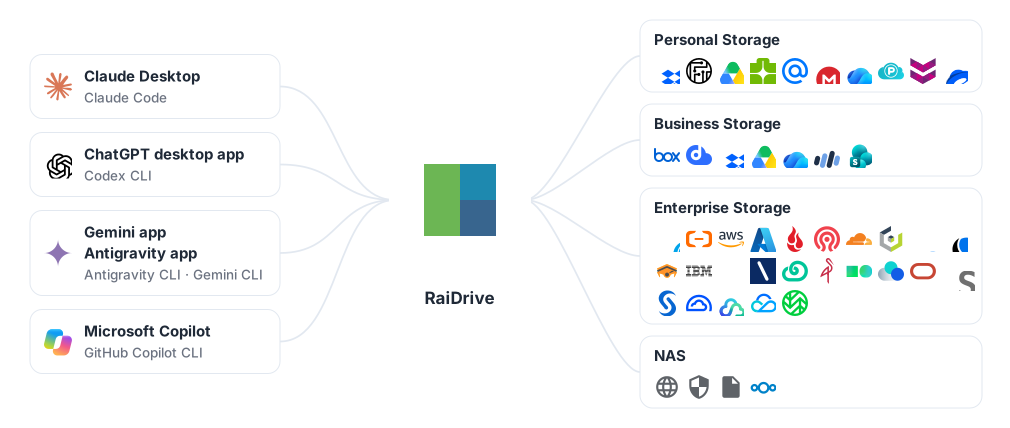
How it works
AI desktop apps and coding agents (AI tools that run in a terminal and edit files for you) work on folders on your PC. They do not know that a folder is in the cloud. RaiDrive puts the storage on a drive letter, so you open a folder on that drive in the AI tool:
- Connect the storage in RaiDrive — for example Google Drive as
Z:. - In the AI tool, open or attach a folder on that drive, such as
Z:\Documents. - The AI tool reads the files there, and a tool that works in a folder also writes its results there. RaiDrive downloads and uploads each file only when the AI tool uses it.
You do not need a separate connector (add-on) for each service. Every storage RaiDrive supports works the same way: personal clouds, business clouds, S3-compatible object storage, and servers that use WebDAV, SFTP or FTP (ways to reach files on a server over the network). RaiDrive itself has no AI feature. To the AI tool, the RaiDrive drive is an ordinary drive.
Choose your AI tool
Some tools below are CLIs: programs you run by typing their name in a
terminal (a window where you type commands, such as PowerShell). "Start
claude in it" means: open a terminal, move to that folder with cd, and
type claude.
| AI tool | How it opens files on the drive | Guide |
|---|---|---|
| Claude Desktop, Claude Code | Attach the drive's folder (Claude Desktop) or start claude in it (Claude Code) |
Claude |
| ChatGPT desktop app, Codex CLI | Open a folder on the drive as a project (ChatGPT desktop app), or start codex in that folder (Codex CLI) |
ChatGPT and Codex |
| Gemini app, Gemini CLI, Antigravity app, Antigravity CLI | Upload files from the drive (Gemini app, read only), open the drive's folder as a project (Antigravity app), or start agy (or gemini) in it |
Gemini and Antigravity |
| Microsoft Copilot, GitHub Copilot CLI | Attach files from the drive to the chat and download what Copilot makes (Microsoft Copilot, read only), or start copilot in the drive's folder (GitHub Copilot CLI) |
Microsoft Copilot and GitHub Copilot |
| AI in a web browser — Copilot, Gemini, ChatGPT, Claude, AI answers in Google Search and Bing | Upload a file from the drive with the browser's file picker (read only) | AI in a web browser below |
AI in a web browser
AI services that you use in a web browser take files from the drive the same way as the Copilot app: Microsoft Copilot (copilot.microsoft.com) and Copilot in Bing, Gemini (gemini.google.com) and AI Mode in Google Search, ChatGPT (chatgpt.com), Claude (claude.ai).
- On the page, click the upload button — often + or a paper clip.
- The browser opens the Windows file picker (the window where you choose a file). The drive is listed there as in Microsoft Copilot.
- Choose the file on the drive and ask about it.
A web page uploads a copy of the file. It does not open a folder on the drive and does not write to it. Which file types a page accepts depends on that service.
Recommended drive settings
A new drive connects as a Network drive that is Private. These are two drive options in RaiDrive; What each drive setting allows explains them. Most AI tools work with this default. Change the settings below for these goals:
| Goal | Setting | Where |
|---|---|---|
| The AI tool must not change or delete originals | Read-only | Safe access |
| The AI tool sees only one project, not the whole storage | Mount a specific folder | Safe access |
| See which files the AI tool opens | Monitor process access to files | Safe access |
| The drive is connected when the AI tool starts | Reconnect at program start (on by default) | Compatibility |
| Claude Desktop attaches folders on the drive | Network drive (default), or Local Disk + Public — depends on the RaiDrive version | Claude |
| An AI agent runs in the background (as a Windows service, or while nobody is signed in) | Local Disk + Public | Compatibility |
For administrators
RaiDrive is set up the same way whether the AI tool is used with a personal or a business account:
- Deploy drives as read-only when AI tools only need to read.
- An agent that runs as a Windows service, or while nobody is signed in, needs a Public drive. See Compatibility.