SharePoint
Mount a SharePoint Online site's document library as a Windows drive — useful for team sites whose libraries you work in daily.
Before you begin
Prepare the following in advance:
- A Microsoft 365 work or school account with access to the site.
- Your organization must allow third-party app consent — if consent is blocked, ask your Microsoft 365 administrator to approve RaiDrive.
For tenants hosted on the Chinese sovereign cloud (21Vianet), use the separate SharePoint China entry.
Help from Microsoft
Connect
- Click Add in the toolbar.
- Choose Business → SharePoint.
- Set the drive letter and name, then click the Refresh button next to the site list. Your browser opens — sign in and click Accept.
- Select the site to mount from the list, then click Connect.
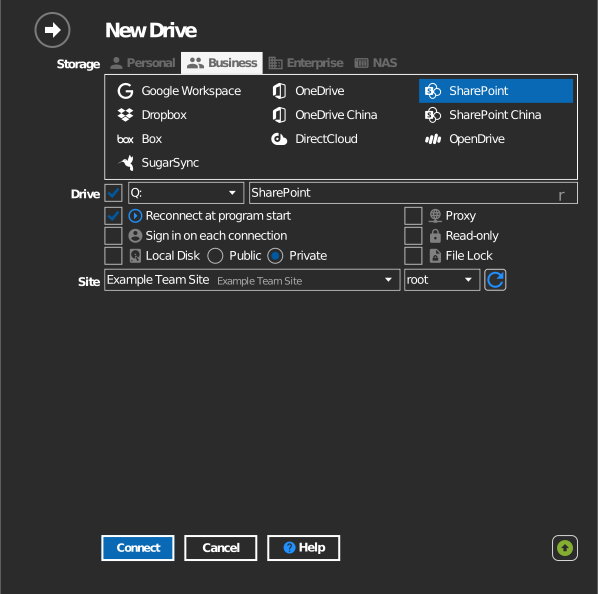
Settings
| Setting | Description | Default |
|---|---|---|
| Drive letter | Where the drive mounts in Windows | first available |
| Name | Label shown in File Explorer | SharePoint |
| Site | The SharePoint site whose library is mounted | — |
| Read-only | Blocks writes to the mounted drive | off |
Behavior & limits
- The site list shows sites of the Microsoft 365 groups you belong to. A site you can open in the browser may still be absent if you are not a member of its group.
- SharePoint permission levels are enforced on the drive.
- File names containing
" * : < > ? / \ |cannot be saved — see Microsoft's restrictions list.
Troubleshooting
| Symptom | Cause | Fix |
|---|---|---|
| Expected site not in the list | Not a member of the site's group | Ask the site owner for membership, then click Refresh again |
| "Need admin approval" during sign-in | Tenant blocks unapproved apps | Ask your administrator to grant consent to RaiDrive |
| Files save but vanish | Library requires check-in / content approval | Check the library settings in SharePoint |