DirectCloud
Mount DirectCloud — enterprise file storage popular in Japan — as a Windows drive. Connect with the service, service key and company code from your administrator, plus your username and password.
Before you begin
Prepare the following in advance:
- Service and Service Key
- Company code
- Your username and password
Your DirectCloud administrator or console provides these values.
Help from DirectCloud
Connect
- Click Add in the toolbar.
- Choose Business → DirectCloud.
- Set the drive letter and name.
- Enter the Service, Service Key, Company, Username, and Password, then click Connect.
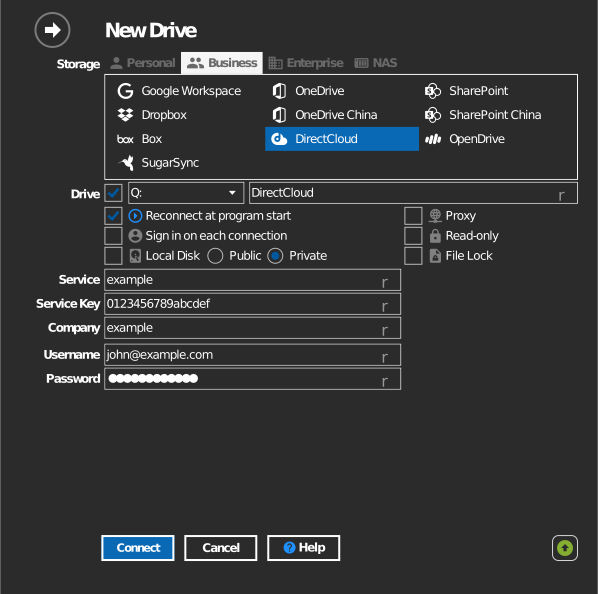
Settings
| Setting | Description | Default |
|---|---|---|
| Drive letter | Where the drive mounts in Windows | first available |
| Service / Service Key | Issued for your DirectCloud tenant | — |
| Company | Tenant's company code | — |
| Username / Password | Your DirectCloud account | — |
| Read-only | Blocks writes to the mounted drive | off |
Behavior & limits
- Folder and file permissions configured in DirectCloud are enforced on the drive.
Troubleshooting
| Symptom | Cause | Fix |
|---|---|---|
| Sign-in fails | Wrong Service/Service Key or Company code | Re-check the values with your administrator |
| Some folders invisible | DirectCloud access rights | Ask the administrator to review folder permissions |