Storj
Mount a Storj bucket as a Windows drive through the Storj S3-compatible gateway.
Before you begin
Prepare the following in advance:
- S3 credentials for the hosted gateway — an access grant alone does not work.
Where to get the keys — in the Storj console:
- Open your project's Access page.
- Click Create S3 Credentials.
- Name the credentials and assign permissions (and buckets, if you want to restrict it).
- Copy or download the Access Key ID and Secret Access Key — they are shown only once.
Help from Storj
Connect
- Click Add in the toolbar.
- Choose Enterprise → Storj.
- Enter the Access Key ID and Secret Access Key, then click the Refresh button next to the bucket field.
- Select the bucket and click Connect.
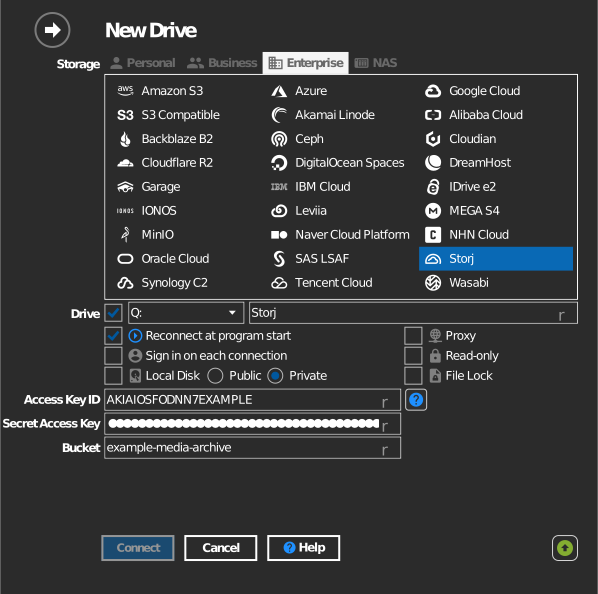
Manual bucket entry
If your key is not allowed to list buckets, tick the checkbox to the left of the bucket field and type the bucket name directly.
Settings
| Setting | Description | Default |
|---|---|---|
| Access Key ID / Secret Access Key | S3 credentials from the Storj console | — |
| Bucket | The bucket to mount (list or manual entry) | — |
| Read-only | Blocks writes to the mounted drive | off |
Behavior & limits
- Storj has a single global gateway endpoint
(
gateway.storjshare.io) — there is no region to choose. - An access grant alone does not work here — it must be converted to S3 credentials in the console.
Troubleshooting
| Symptom | Cause | Fix |
|---|---|---|
| Authentication fails | Access grant used instead of S3 credentials | Generate S3 credentials in the Storj console |
| Bucket list empty | Credentials scoped to specific buckets | Type the bucket name manually |