NHN Cloud
Mount NHN Cloud Object Storage (formerly Toast) as a Windows drive. The service is built on OpenStack Swift.
Before you begin
Prepare the following in advance:
- The Tenant ID of the project.
- Your console account (email).
- The API password — set separately from your console password.
Where to get them — in the NHN Cloud console:
- Open your project's Object Storage service.
- Click API Endpoint Setting.
- Copy the Tenant ID displayed there.
- Set the API password on the same screen — it is yours to define, not the console login password.
Help from NHN Cloud
Connect
- Click Add in the toolbar.
- Choose Enterprise → NHN Cloud.
- Enter the Tenant ID, account, and API password, then click the Refresh button next to the container field.
- Select the container to mount and click Connect.
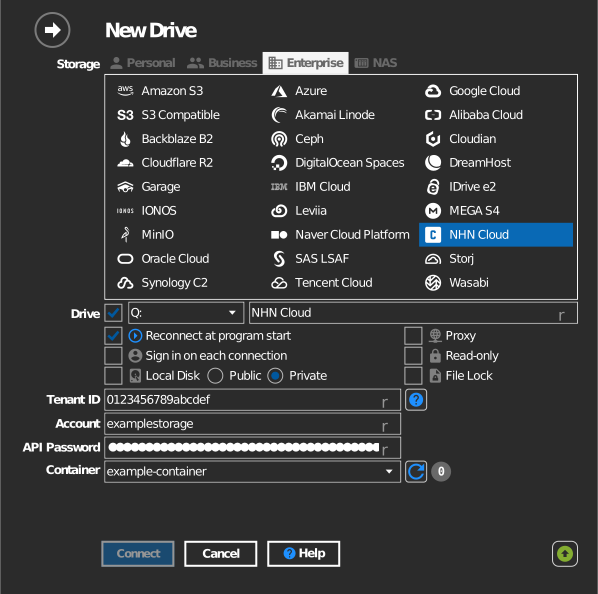
Settings
| Setting | Description | Default |
|---|---|---|
| Tenant ID | Project identifier from the NHN Cloud console | — |
| Account | Console account email | — |
| API password | The API password (not the console password) | — |
| Container | The Swift container to mount | — |
| Read-only | Blocks writes to the mounted drive | off |
Behavior & limits
- Authentication goes through the NHN Cloud identity service
(
api-identity.infrastructure.cloud.toast.com); tokens are renewed automatically. - Containers live in a region (KR1, KR2, JP1, US1) — the drive talks to that
region's storage endpoint (for example
kr2-api-storage.cloud.toast.com).
Troubleshooting
| Symptom | Cause | Fix |
|---|---|---|
| Authentication fails | Console password used instead of API password | Set/issue the API password in the console and use that |
| Container list empty | Wrong Tenant ID | Copy the Tenant ID from the project's API endpoint settings |