Wasabi
Mount a Wasabi bucket as a Windows drive.
Before you begin
Prepare the following in advance:
- An Access Key ID and Secret Access Key pair.
Where to get the keys — in the Wasabi console:
- Open Access Keys in the left menu.
- Click Create New Access Key.
- Copy or download both values — the secret is shown only once.
For daily use Wasabi recommends creating keys under a sub-user instead of the root account.
Help from Wasabi
Connect
- Click Add in the toolbar.
- Choose Enterprise → Wasabi.
- Enter the Access Key ID and Secret Access Key, then click the Refresh button next to the bucket field.
- Select the bucket and click Connect.
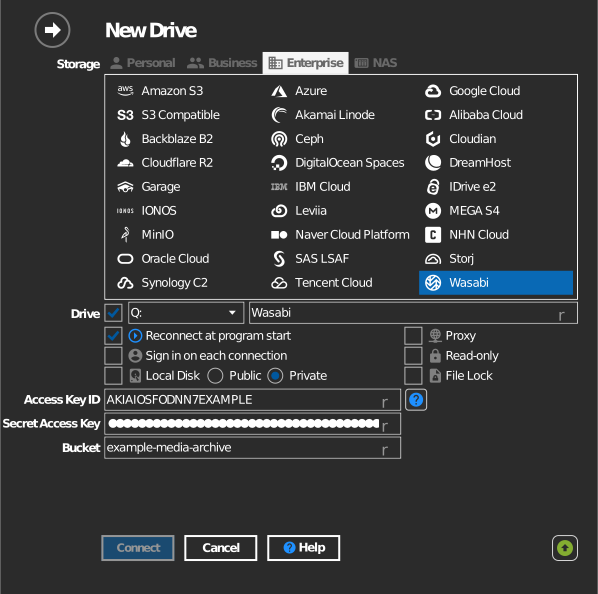
Manual bucket entry
If your key is not allowed to list buckets, tick the checkbox to the left of the bucket field and type the bucket name directly.
Settings
| Setting | Description | Default |
|---|---|---|
| Access Key ID / Secret Access Key | Wasabi credentials | — |
| Bucket | The bucket to mount (list or manual entry) | — |
| Read-only | Blocks writes to the mounted drive | off |
Behavior & limits
- Buckets are discovered across Wasabi's storage regions
(
s3.<region>.wasabisys.com— us-east-1/2, us-central-1, us-west-1, ca-central-1, eu-central-1/2, eu-west-1/2, ap-northeast-1/2, ap-southeast-1/2). - Wasabi's pricing has no egress fee, but deleting objects earlier than the minimum storage duration still incurs the timed-storage charge — see Wasabi: minimum storage duration policy.
Troubleshooting
| Symptom | Cause | Fix |
|---|---|---|
| Bucket list empty | Sub-user policy lacks ListAllMyBuckets | Extend the policy, or type the bucket manually |
| Access Denied on connect | Key lacks bucket permission | Check the bucket policy in the Wasabi console |