Sign In
Sign in to RaiDrive before you add a drive. Until you sign in, RaiDrive shows a Welcome screen instead of the drive list. Sign in with a third-party account or a RaiDrive email account.
Where to sign in
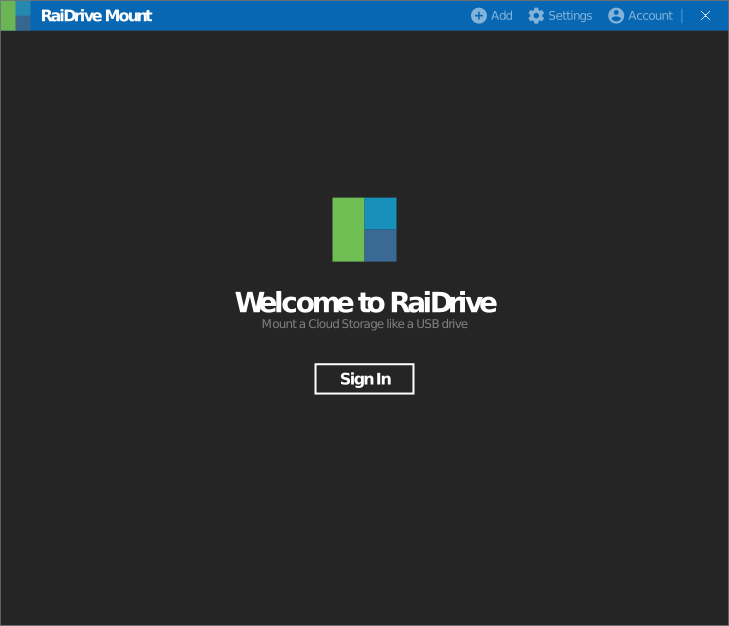
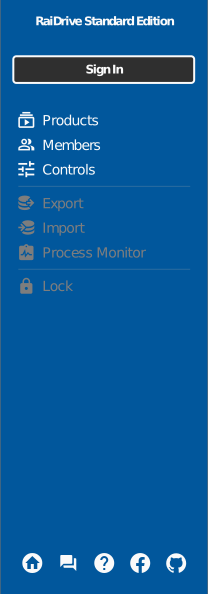
RaiDrive has two Sign In buttons. Both do the same thing — use either one.
-
The Welcome screen — shown on first launch and any time you are signed out.
-
The Account panel — click Account on the toolbar. While you are signed out, the panel shows a Sign In button at the top.
Sign-in steps
- Click Sign In on the Welcome screen or in the Account panel.
- In the sign-in window, sign in with a third-party account — Google, Microsoft, Facebook, Apple, GitHub, or NAVER — or with a RaiDrive email account.
To create an email account, click Sign Up, enter your email and password, and confirm the verification link sent to your inbox.
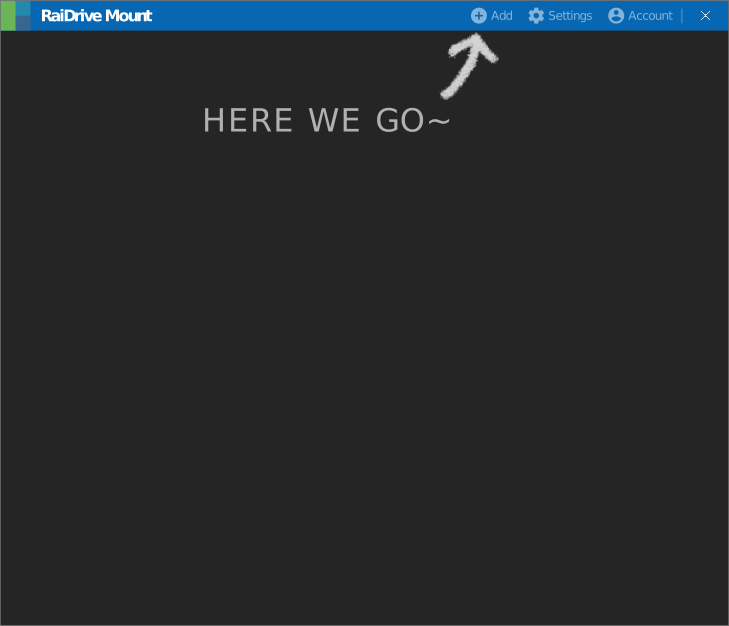
Once you are signed in, the drive list appears, empty and ready for your first drive:
The same account works on the RaiDrive website for purchases and subscription management. What the account gives you and how to sign out are in Account & License.
Next: Create Your First Drive.