Let AI tools read cloud files without changing them
Protect your cloud storage when an AI tool works on a RaiDrive drive. You can do three things: connect the drive read-only, mount (connect as the drive) only the folder the AI tool needs, and see which files it opens. These settings work the same with every AI tool.
An AI agent (an AI tool that changes files for you) can edit, rename and delete files. On a RaiDrive drive these changes go to your storage, not to a local copy. Many AI tools ask before they write, but not all of them, and not always — some write inside the folder you started them in without asking, depending on the tool and its settings. The settings below protect the files even then, and even if a change is approved by mistake.
Read-only
- In RaiDrive, click Disconnect on the drive, then Edit.
-
Check Read-only and click OK.

-
Click Connect on the drive.
The AI tool can open and read every file. Windows refuses every change on the whole drive: new files, edits, renames and deletes. When the AI tool tries to change a file, it gets an error such as "The media is write protected." or "Permission denied".
When the AI tool must write its results somewhere, let it write to a local folder. Or connect the output folder of the storage as a second RaiDrive drive without Read-only — see Mount only one folder. See also Read-only.
Mount only one folder
An AI tool can read everything inside the folder you open in it. Mount (connect as the drive) only the folder it needs, instead of the whole storage. The rest of the storage is then not on the drive at all:
- Google Drive and OneDrive: the Folder option — see Google Drive and OneDrive.
- NAS and protocol storages (WebDAV, SFTP, FTP): the Path setting makes a server folder the top level of the drive (the drive root) — see WebDAV.
See what the AI tool opens
- In RaiDrive, click Disconnect on the drive, then Edit.
- In the advanced options, turn on Monitor process access to files. Click OK, then Connect.
- Open the Process Monitor while the AI tool works.
The list shows the files that are open on your drives and the process
(running program) using each one. The AI tool's process (for example
claude.exe) appears with the files it reads (R) and writes (W).
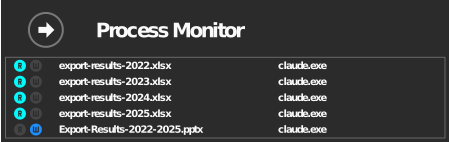
To see only whether something is being read or written, the drive list in the RaiDrive window is enough: with the same option on, the R and W marks on the drive light up while a program reads or writes files on it. The Process Monitor adds which file and which program.

The list is live, not a history. An entry disappears a few seconds after the file is closed.
If a file was changed or deleted
On storages with a trash (Google Drive, OneDrive, Box, MEGA, …), files deleted on the drive go to the storage's own trash. You can restore them there. See Where do files go when I delete them on the drive?