IDrive e2
Mount an IDrive e2 bucket as a Windows drive.
Before you begin
Prepare the following in advance:
- An Access Key ID and Secret Access Key pair.
- Your region's endpoint URL (
https://<host>.<region>.idrivee2-XX.com).
Where to get them — in the e2 console:
- Open the Access Keys tab and click Create Access Key.
- Name the key, pick the region, set permissions (and buckets, if you want to restrict it), then create and copy both values.
- The endpoint URL for each enabled region is shown on the Dashboard tab under Enabled regions.
Help from IDrive
Connect
- Click Add in the toolbar.
- Choose Enterprise → IDrive e2.
- Enter the endpoint URL, Access Key ID, and Secret Access Key, then click the Refresh button next to the bucket field.
- Select the bucket and click Connect.
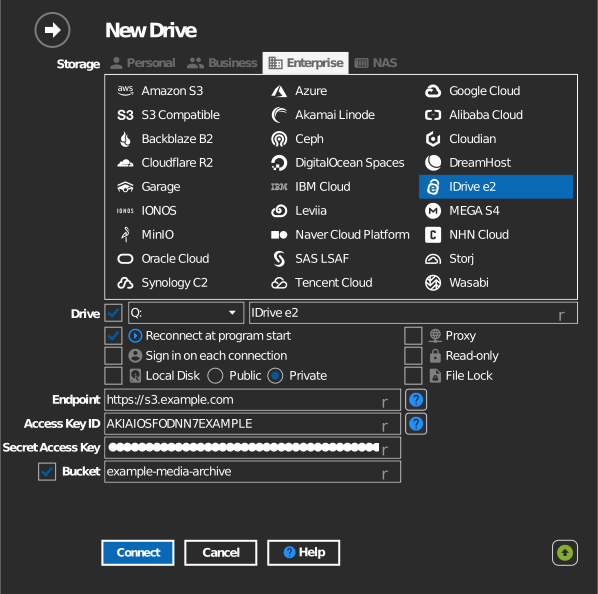
Manual bucket entry
If your key is not allowed to list buckets, tick the checkbox to the left of the bucket field and type the bucket name directly.
Settings
| Setting | Description | Default |
|---|---|---|
| Endpoint | Region endpoint from the e2 console | — |
| Access Key ID / Secret Access Key | e2 credentials | — |
| Bucket | The bucket to mount (list or manual entry) | — |
| Read-only | Blocks writes to the mounted drive | off |
Behavior & limits
- RaiDrive checks that the endpoint hostname is an IDrive e2 address; other URLs are rejected as "invalid endpoint".
Troubleshooting
| Symptom | Cause | Fix |
|---|---|---|
| "invalid endpoint" | URL is not the e2 endpoint form | Copy the endpoint exactly from the e2 console |
| Bucket list empty | Key restricted, or wrong region endpoint | Use the endpoint of the region that holds the bucket |