Garage
Mount a bucket on a Garage cluster — lightweight self-hosted S3 storage — as a Windows drive.
Before you begin
Prepare the following in advance:
- Your Garage cluster's S3 endpoint URL.
- An Access Key ID and Secret Access Key pair granted access to the target bucket.
- The region configured for the cluster (Garage's default is
garage).
Where to get the keys — on the machine that administers the cluster:
garage key create raidrive-key
garage bucket allow --read --write YOUR-BUCKET --key raidrive-key
The first command prints the Key ID and Secret key.
Help from Garage
Connect
- Click Add in the toolbar.
- Choose Enterprise → Garage.
- Enter the endpoint URL, region, Access Key ID, and Secret Access Key, then click the Refresh button next to the bucket field.
- Select the bucket and click Connect.
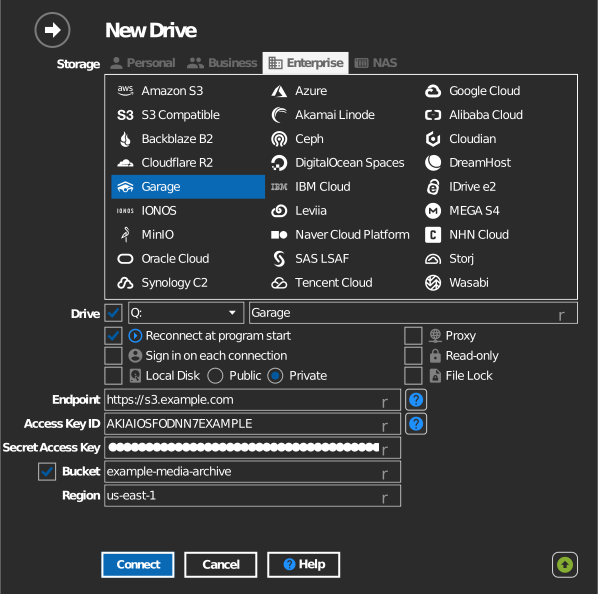
Manual bucket entry
If your key is not allowed to list buckets, tick the checkbox to the left of the bucket field and type the bucket name directly.
Settings
| Setting | Description | Default |
|---|---|---|
| Endpoint | Garage S3 API URL | — |
| Region | Cluster's region value (needed for request signing) | — |
| Access Key ID / Secret Access Key | Garage key pair | — |
| Bucket | The bucket to mount (list or manual entry) | — |
| Read-only | Blocks writes to the mounted drive | off |
Behavior & limits
- Connections use path-style addressing, and private or self-signed TLS certificates are accepted — suitable for LAN and homelab deployments.
Troubleshooting
| Symptom | Cause | Fix |
|---|---|---|
| Signature errors | Region does not match the cluster config | Set the Region field to the cluster's s3_region value |
| Bucket list empty | Key not granted on the bucket | garage bucket allow the key, or type the bucket manually |