General settings
Open Settings from the toolbar. The General section covers startup, File Explorer integration, browser, language, and updates.
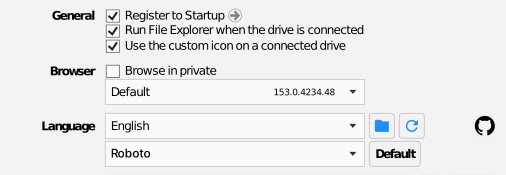
Register to Startup
Starts RaiDrive automatically when Windows starts. The entry appears in Windows Task Manager's Startup apps list; unchecking removes it. Combine with the per-drive Reconnect option so drives come back on their own.
Run File Explorer when the drive is connected
Opens a File Explorer window at the drive every time it connects.
Use the custom icon on a connected drive
Shows each storage service's own icon (Google Drive, Dropbox, and so on) on its drive letter in File Explorer, instead of the generic Windows drive icon. RaiDrive sets this icon each time a drive connects. Turning the option off doesn't reset existing icons to the Windows default — it stops RaiDrive from touching the icon and leaves whatever is already set (RaiDrive's icon, or one you assigned yourself) as is.
Browser
Browse in private opens the sign-in page in a private/incognito window, so the browser doesn't keep sign-in history or cookies from it — useful on a shared computer, or any time you don't want the storage login to linger in your regular browsing session. It's also the way to sign in with a different storage account than the one already signed in in your regular browser window. The dropdown below the checkbox lets you pick which installed browser RaiDrive opens for sign-ins.
Language and font
RaiDrive's interface language and UI font, picked independently. The Default button next to the font resets it to Roboto — language has no such button; pick a different one directly from the list.
40 languages are available:
Czech (čeština), Danish (dansk), German (Deutsch), Estonian (eesti), English, Spanish (español), French (français), Croatian (hrvatski), Indonesian (Indonesia), Italian (italiano), Latvian (latviešu), Lithuanian (lietuvių), Hungarian (magyar), Malay (Melayu), Dutch (Nederlands), Norwegian Bokmål (norsk bokmål), Polish (polski), Portuguese – Brazil (português), Portuguese – Portugal (português), Romanian (română), Slovak (slovenčina), Slovenian (slovenščina), Finnish (suomi), Swedish (svenska), Vietnamese (Tiếng Việt), Turkish (Türkçe), Greek (Ελληνικά), Bulgarian (български), Russian (русский), Ukrainian (українська), Arabic (العربية), Persian (فارسی), Hebrew (עברית), Bangla (বাংলা), Hindi (हिन्दी), Thai (ไทย), Korean (한국어), Japanese (日本語), Chinese – Simplified (中文), Chinese – Traditional (中文).
Update
The bottom of Settings shows the app version and whether a newer version is available. Check opens the download page — updates install over the existing version, keeping your drives and settings.
