OneDrive
Mount your personal OneDrive as a Windows drive.
Before you begin
Prepare the following in advance:
- A personal Microsoft account (email, phone, or Skype sign-in).
For a Microsoft 365 work or school account, use the OneDrive entry in the Business tab instead — see OneDrive (Business).
Help from Microsoft
Connect
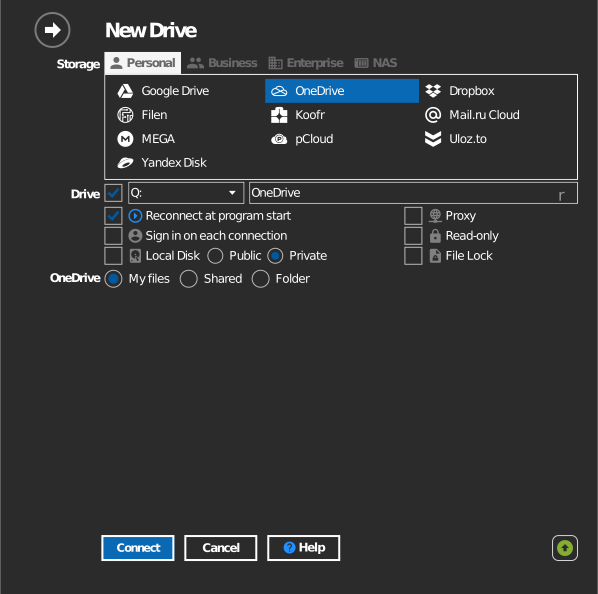
- Click Add in the toolbar.
- Choose Personal → OneDrive.
- Pick what to mount:
- My files — your whole OneDrive.
- Shared — items other people shared with you.
- Folder — a single folder from My files, from Shared, or by its URL (see Mount a specific folder below).
- Set the drive letter and name, then click Connect. Your browser opens — sign in to Microsoft and click Accept to grant access.
Mount a specific folder
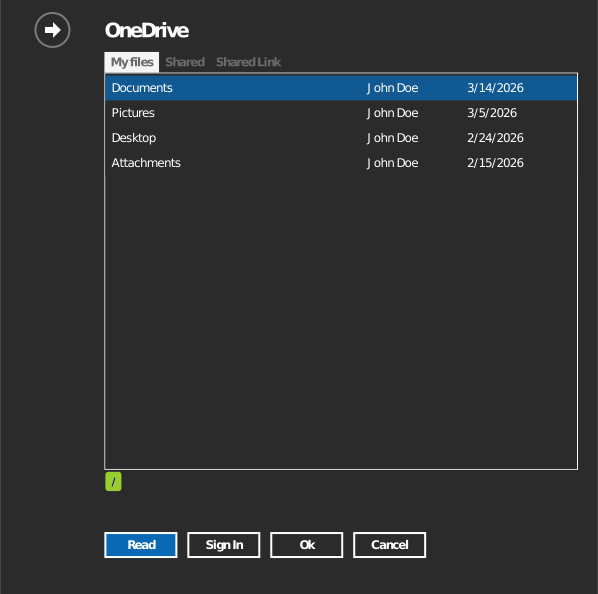
Instead of the whole OneDrive, you can mount the selected folder.

Specify the folder one of two ways:
- Click the folder icon to open a folder browser — it asks you to sign in first, then double-click into the folder you want and click OK.
- Or select the Shared Link tab and paste the URL directly. Open the folder at onedrive.live.com and copy the URL from your browser's address bar.
Settings
| Setting | Description | Default |
|---|---|---|
| Drive letter | Where the drive mounts in Windows | first available |
| Name | Label shown in File Explorer | OneDrive |
| Source | My files, Shared, or a specific folder / Shared Link | My files |
| Read-only | Blocks writes to the mounted drive | off |
Behavior & limits
- OneDrive rejects file names containing
" * : < > ? / \ |and names with leading or trailing spaces. Saving such a file fails on the mounted drive — see Microsoft's restrictions list. - Items in Shared keep the permission the owner granted — read-only shares stay read-only on the drive.
- Files deleted on the drive are moved to OneDrive's recycle bin, where they can be restored.
- Large parallel transfers can be slowed by Microsoft Graph API throttling.
Troubleshooting
| Symptom | Cause | Fix |
|---|---|---|
| Sign-in window keeps reappearing | Stale cached credential | Disconnect the drive, remove the account, and sign in again |
| A shared item is missing | It was shared to a different account | Check which Microsoft account you signed in with |
| Cannot save a file | Name contains a character OneDrive forbids | Rename the file, then save |