Dropbox
Mount your personal Dropbox as a Windows drive and work with files directly in File Explorer.
Before you begin
Prepare the following in advance:
- A Dropbox account. You can also sign in with the Microsoft, Google, or Apple account linked to it.
For a Dropbox team account, use the Dropbox entry in the Business tab instead — see Dropbox (Business).
Help from Dropbox
Connect
- Click Add in the toolbar.
- Choose Personal → Dropbox.
- Set the drive letter and name, then click Connect.
- Your browser opens — sign in to Dropbox and click Allow to grant access.
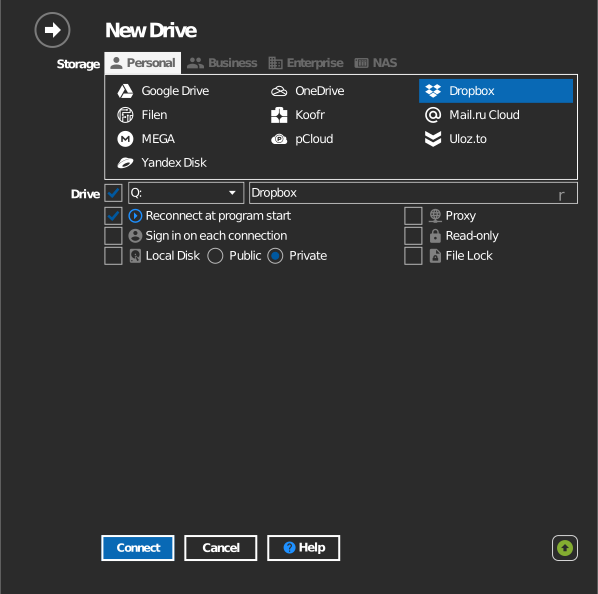
Settings
| Setting | Description | Default |
|---|---|---|
| Drive letter | Where the drive mounts in Windows | first available |
| Name | Label shown in File Explorer | Dropbox |
| Read-only | Blocks writes to the mounted drive | off |
Behavior & limits
- Dropbox does not sync temporary files. Files named like these are
not saved — see
Dropbox: fix files not syncing:
- names starting with
~$ - names starting with
~and ending with.tmp - names starting with
.~
- names starting with
- Because of the temporary-file rule above, Microsoft Office autosave files behave differently than on a local disk. RaiDrive therefore mounts Dropbox as a network drive by default — keep it that way if you edit Office documents on the drive.
Troubleshooting
| Symptom | Cause | Fix |
|---|---|---|
| An Office temp file never appears | Dropbox skips ~$-style names by design |
Nothing to fix — the real document still saves |
| Sign-in succeeds but the drive is empty | Signed in to the wrong Dropbox account | Disconnect the drive, then connect again and sign in with the intended account |