Remove Access to a Storage Account
Stop RaiDrive from reaching your cloud storage or NAS. Delete the drive, then remove RaiDrive's app permission, access key, or password on the storage side.
To stop signing in to RaiDrive with a Google, Apple, or other account, see Remove Access to a Sign-in Account.
Why there are two steps
When you connect a drive, RaiDrive saves the access you give it on your PC. The storage remembers it too.
- Deleting the drive in RaiDrive removes only the copy on your PC.
- The storage accepts the access until you remove it there.
Do both steps if you stop using RaiDrive with a storage, or if someone else may have your sign-in information.
| How you connected | Storage | What to remove on the storage side |
|---|---|---|
| You signed in in the browser and allowed RaiDrive | Google Drive, Google Workspace, Google Cloud, OneDrive, SharePoint, Dropbox, Box, Koofr, pCloud, Yandex Disk | App permission |
| You entered an access key and a secret key | Amazon S3, S3 Compatible, Azure, and the other services in Enterprise | Access key |
| You entered a username and a password | MEGA, Filen, Mail.ru Cloud, SugarSync, OpenDrive, UlozTo, DirectCloud, SAS LSAF, and the services in NAS | Password |
Step 1: Remove the drive from RaiDrive
On every PC where you added the drive, remove it from the drive list:
- If the drive is connected, click Disconnect (①). Delete works only on a disconnected drive.
- Click Delete (②).
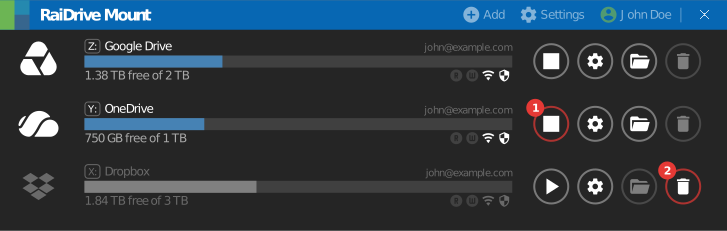
See Drive buttons.
Also remove the other copies of the access:
- Export file with credentials — if you exported the drive list with Including credentials checked, the file holds the access. Delete the email that has the file attached, and any downloaded copy. See Export/Import.
- Proxy password — if you entered a username and a password in Settings → Proxy, RaiDrive saves them too. That account belongs to your network, not to a storage. Ask your network administrator to change its password.
Step 2: Remove the access on the storage side
This affects every PC and every app
The storage removes the access for everyone who uses it:
- App permission — RaiDrive stops working with that account on all your PCs. The next time you connect, you sign in and allow RaiDrive again.
- Access key — every app that uses the same key stops working. Use a separate key for RaiDrive.
- Password — other apps and devices that use the password may sign out.
App permission
You signed in to the storage in your browser and clicked Allow or Accept. The storage lists RaiDrive among the apps that can reach your account. Remove RaiDrive from that list.
Google
For Google Drive, Google Workspace, Google Cloud, and Google Photos.
- Open Linked apps in your Google Account.
- Click RaiDrive or RaiDrive (Business).
- Under RaiDrive has some access to your Google Account, click See details.
- Click Remove all access.

If you also sign in to RaiDrive with this Google account, click Delete all in step 3 to remove both. To remove only the sign-in, see Google on the sign-in page.
Google Workspace administrators can remove the access for a user, or block RaiDrive for the organization:
- For one user — go to Directory > Users, click the user, then click Security. In Connected applications, point to RaiDrive and click Remove. The access comes back if the user signs in to RaiDrive again.
- For the organization — go to Security > Access and data control > API controls, then click Manage App Access. Point to RaiDrive, click Change access, select Blocked, and confirm.
Microsoft personal account
For OneDrive with a personal Microsoft account.
- Open App access in the Privacy section of your Microsoft account.
- Click Details next to RaiDrive.
- Click Stop sharing.

If RaiDrive is listed twice, stop sharing both. The two entries show the same permissions, so you can't tell which one is the OneDrive access. This also removes your RaiDrive sign-in with this account; you sign in again next time.
Removing the permission can take up to 1 hour.
Microsoft work or school account
For OneDrive (Business), SharePoint, OneDrive China, and SharePoint China.
- Open the My Apps portal.
- On the RaiDrive tile, click ⋮.
- Click Manage your application.
- Click Revoke consent.
If RaiDrive isn't in the list, or your administrator consented to the permission, ask your administrator.
Microsoft Entra administrators use the Microsoft Entra admin center (21Vianet: entra.microsoftonline.cn):
- Stop RaiDrive for everyone — go to Entra ID > Enterprise apps > All applications, select RaiDrive, then click Properties. Set Enabled for users to sign-in? to No, then click Save. RaiDrive can't get new tokens.
- Sign a user out of all apps — go to Entra ID > Users > All users, select the user, then click Revoke sessions on the Overview page. The user signs in again to every app, including RaiDrive.
The admin center can't revoke permissions in the User consent tab. Microsoft's article shows how to revoke them with PowerShell or Microsoft Graph.
Help from Microsoft
Dropbox
For Dropbox and Dropbox (Business).
- Open Apps in your Dropbox settings.
- Click the arrow next to RaiDrive.
- Click Disconnect.

Dropbox team administrators can block RaiDrive for the team: in the Admin console, go to Settings > Integrations and block RaiDrive. Blocking doesn't disconnect members who already connected. Ask them to disconnect RaiDrive with the steps above.
Help from Dropbox
Box
- Open Security in your Box account settings.
- In Login Activity, click X next to each RaiDrive row, then confirm.

RaiDrive can appear more than once, one row per sign-in. If RaiDrive is also listed in the Integrations tab, click Remove there.
Box administrators can turn RaiDrive off for the enterprise: in the Admin Console, go to Integrations, then set the Availability Status of RaiDrive to Disabled. Users can't use RaiDrive, even if they added it before.
Koofr
- Open Security in your Koofr preferences.
- In Applications, click [-] next to RaiDrive.
- Click Yes.
Changing your Koofr password signs you out of the web, but doesn't remove app access.
Help from Koofr
Yandex Disk
- Open the Security tab of your Yandex ID.
- In Access to your data, click Manage permissions.
- Select RaiDrive and click Remove.
Changing your password, or clicking Log out on all devices, also revokes the access of every app.
Help from Yandex
pCloud
- Open Linked Accounts in your pCloud settings.
- In Linked Apps, click ✕ in the Delete column of RaiDrive, then confirm.

Help from pCloud
Naver MYBOX
Open the account settings of NAVER and remove RaiDrive from the connected apps. If you can't find RaiDrive there, change your password.
Help from NAVER
Access key
Anyone who has the access key and the secret key can reach your storage. Remove the key on the storage side.
- If you still use RaiDrive with this storage, create a new key in the storage console. Before you begin in the storage guide shows where.
- Put the new key in RaiDrive and in every other app that uses the old key.
- Deactivate the old key, if the console offers it. Check that your apps still work.
- Delete the old key.
Azure keys can't be deleted. Click Regenerate for the key in Security + networking > Access keys of the storage account. This also cancels the account SAS and service SAS tokens signed with that key.
Help with access keys
Password
Change the password on the service. RaiDrive and every other app that uses the old password can't sign in.
Some services let you end RaiDrive's access without changing the password. MEGA and QNAP show the sessions of your account; others use a separate app password or key:
- App password (Mail.ru Cloud, Nextcloud, Yandex Disk) — if you gave RaiDrive an app password, delete only that app password. On Nextcloud, open Personal settings > Security, then open the menu next to the device or session to revoke its access.
- MEGA — open Security in your MEGA settings. In Session history, click Log out on the RaiDrive session.
- QNAP — click your username, then Login and Security > Password > Log Me Out. This signs your account out on all apps, browsers, and devices.
- SFTP with a private key — remove the public key line from
~/.ssh/authorized_keyson the server. - DirectCloud — ask your administrator to issue a new service key.