IONOS
Mount an IONOS Object Storage bucket as a Windows drive.
Before you begin
Prepare the following in advance:
- An Object Storage Access Key ID and Secret Access Key pair.
Where to get the keys — in the Data Center Designer:
- Go to Menu → Management → Users & Groups.
- Select your user.
- Open the Object Storage Keys tab.
- Click + Generate Key (up to five keys per user).
Help from IONOS
Connect
- Click Add in the toolbar.
- Choose Enterprise → IONOS.
- Enter the Access Key ID and Secret Access Key, then click the Refresh button next to the bucket field.
- Select the bucket and click Connect.
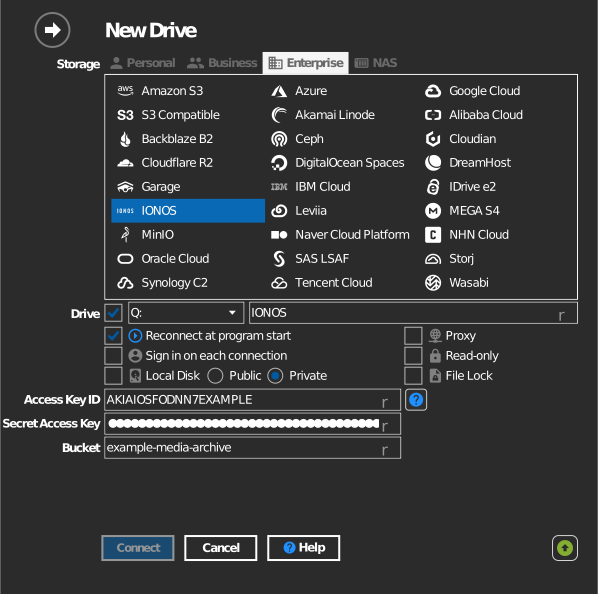
Manual bucket entry
If your key is not allowed to list buckets, tick the checkbox to the left of the bucket field and type the bucket name directly.
Settings
| Setting | Description | Default |
|---|---|---|
| Access Key ID / Secret Access Key | IONOS Object Storage credentials | — |
| Bucket | The bucket to mount (list or manual entry) | — |
| Read-only | Blocks writes to the mounted drive | off |
Behavior & limits
- Buckets are discovered across IONOS regions
(
s3.<region>.ionoscloud.com— eu-central-1/2/3, eu-south-2, us-central-1).
Troubleshooting
| Symptom | Cause | Fix |
|---|---|---|
| Bucket list empty | Key belongs to a different contract | Use the key pair of the contract that owns the bucket |