MEGA
Mount MEGA — end-to-end encrypted cloud storage — as a Windows drive. Sign in with your MEGA email and password directly in RaiDrive.
Before you begin
Prepare the following in advance:
- A MEGA account email and password. MEGA's end-to-end encryption means the password itself unlocks your files, so sign-in happens inside RaiDrive, not in a browser.
Help from MEGA
Connect
- Click Add in the toolbar.
- Choose Personal → MEGA.
- Set the drive letter and name.
- Enter your MEGA username (email) and password, then click Connect.
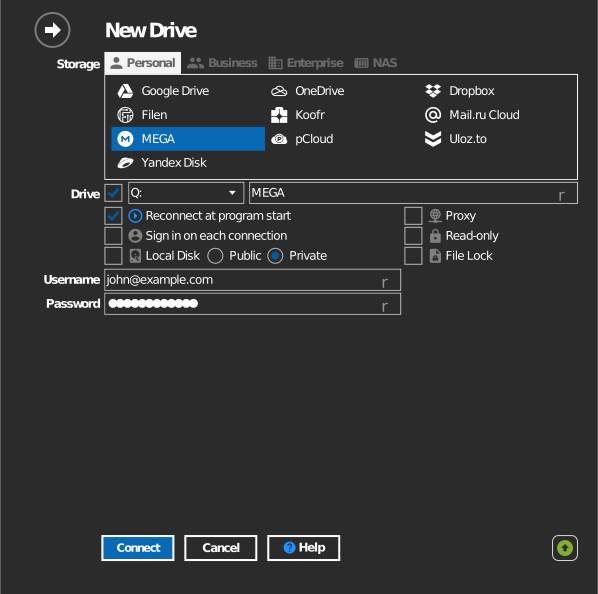
Settings
| Setting | Description | Default |
|---|---|---|
| Username / Password | MEGA account credentials | — |
| Drive letter | Where the drive mounts in Windows | first available |
| Read-only | Blocks writes to the mounted drive | off |
Behavior & limits
- All file data is encrypted and decrypted on your PC — expect more CPU use during large transfers than with other services.
- Files deleted on the drive are moved to MEGA's Rubbish bin, where they can be restored.
- Free accounts have transfer quotas; when the quota is exhausted, reads pause until it resets — see MEGA: transfer quota.
Troubleshooting
| Symptom | Cause | Fix |
|---|---|---|
| Sign-in fails | Wrong password, or account uses 2FA | Check credentials; disable/handle 2FA for app sign-in |
| Transfers stall mid-way | MEGA transfer quota exhausted | Wait for the quota window to reset, or upgrade the plan |