Cloudian
Mount a bucket on a Cloudian HyperStore cluster — S3-compatible object storage installed in your own data center — as a Windows drive.
Before you begin
Prepare the following in advance:
- The cluster's S3 endpoint URL from your storage administrator.
- An Access Key ID and Secret Access Key for your HyperStore user.
Where to get the keys — in the Cloudian Management Console (CMC):
- Sign in.
- Open your profile's Security Credentials page.
- View or create an S3 access key pair.
If you cannot sign in to the CMC, ask your storage administrator.
Help from Cloudian
- Cloudian support portal (HyperStore documentation requires a customer account)
Connect
- Click Add in the toolbar.
- Choose Enterprise → Cloudian.
- Enter the endpoint URL, Access Key ID, and Secret Access Key, then click the Refresh button next to the bucket field.
- Select the bucket and click Connect.
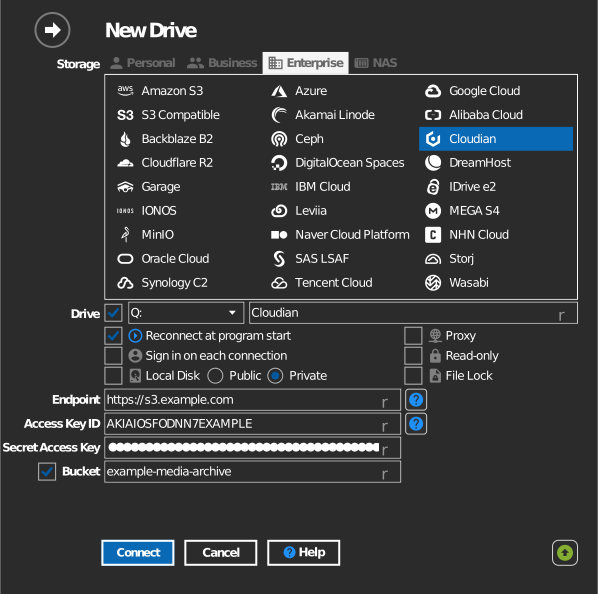
Manual bucket entry
If your key is not allowed to list buckets, tick the checkbox to the left of the bucket field and type the bucket name directly.
Settings
| Setting | Description | Default |
|---|---|---|
| Endpoint | HyperStore S3 endpoint URL | — |
| Access Key ID / Secret Access Key | HyperStore user credentials | — |
| Bucket | The bucket to mount (list or manual entry) | — |
| Read-only | Blocks writes to the mounted drive | off |
Behavior & limits
- RaiDrive verifies the endpoint is really Cloudian (the server identifies
itself as
CloudianS3); a different server is rejected as "invalid endpoint". - Connections use path-style addressing, and private or self-signed TLS certificates are accepted — suitable for on-premises clusters.
Troubleshooting
| Symptom | Cause | Fix |
|---|---|---|
| "invalid endpoint" | URL does not point at a Cloudian cluster | Confirm the S3 service URL with your administrator |
| Connection refused | Endpoint port blocked on the LAN | Check firewall rules between your PC and the cluster |