Options
Every drive has its own properties — open them with the Edit button on the drive. The basic options appear in the same form when you add a drive; the advanced options appear only when you edit a drive after adding it.
Disconnect before editing
A connected drive cannot be edited. Click Disconnect first, change the settings, then connect again.
If an option cannot be changed, your administrator may have locked it — see Managed licenses.
What you can configure
| Group | Settings | Page |
|---|---|---|
| Basic options | Drive letter & name, reconnect behavior, sign in on each connection, read-only, local disk, file lock, proxy | General |
| Advanced options | Capacity, bandwidth limits, file preview, instant file properties, async change updates, date-modified handling, process monitoring, quick copy/move/delete | Advanced Options |
| Connection details | Address, account, path, charset, TLS — these are storage-specific; see the storage guide for your service | — |
Status icons
Small icons appear between the free-space text and the buttons — each one only shows up when it applies to that drive, so most drives show just a few. They are grouped by where you turn them on — General first, then Advanced Options — and within that, the three Local Disk icons kept together:
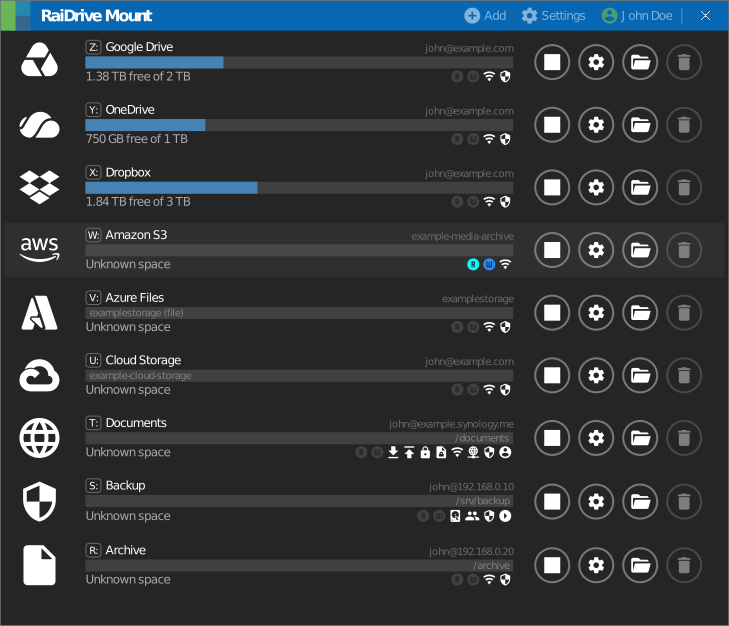
| Icon | Meaning | Set in |
|---|---|---|
 |
Read-only is on | Read-only |
 |
File Lock is on | File Lock |
 |
Mounted as a local disk instead of a network drive | Local Disk |
 |
Mounted as a network drive (the default) — replaces the local-disk icon | Local Disk |
 |
A Public local-disk drive (Private shows no icon here) | Local Disk |
 |
Traffic for this drive goes through the configured proxy | Proxy |
 |
The connection is encrypted (HTTPS, FTPS, or SFTP's own SSH encryption) | The checkbox next to Address — a real toggle for WebDAV, Nextcloud, and FTP (ftps); locked on for SFTP, which is always encrypted |
 |
Reconnects automatically at program start (or at boot, for a public local disk) | Reconnect |
 |
Asks you to sign in again on every connection instead of staying signed in | Sign in on each connection |
  |
Lit up while RaiDrive is reading or writing a file on this drive right now — only if process monitoring is on for this drive | Process Monitor |
  |
A bandwidth limit is active; hover to see the MB/s value | Bandwidth |
 |
The drive uses a feature your current plan doesn't include | raidrive.com/pricing |