Ceph
Mount a bucket on your Ceph cluster's RADOS Gateway (RGW) as a Windows drive.
Before you begin
Prepare the following in advance:
- The RGW endpoint URL of your cluster.
- An Access Key ID and Secret Access Key for an RGW user.
Where to get the keys:
- Your storage administrator creates the user with
radosgw-admin user create --uid=... --display-name=.... - Read the
access_keyandsecret_keyin the command's output.
Dashboards such as the Ceph Dashboard or your vendor's console can also create RGW users.
Help from Ceph
Connect
- Click Add in the toolbar.
- Choose Enterprise → Ceph.
- Enter the endpoint URL, Access Key ID, and Secret Access Key, then click the Refresh button next to the bucket field.
- Select the bucket and click Connect.
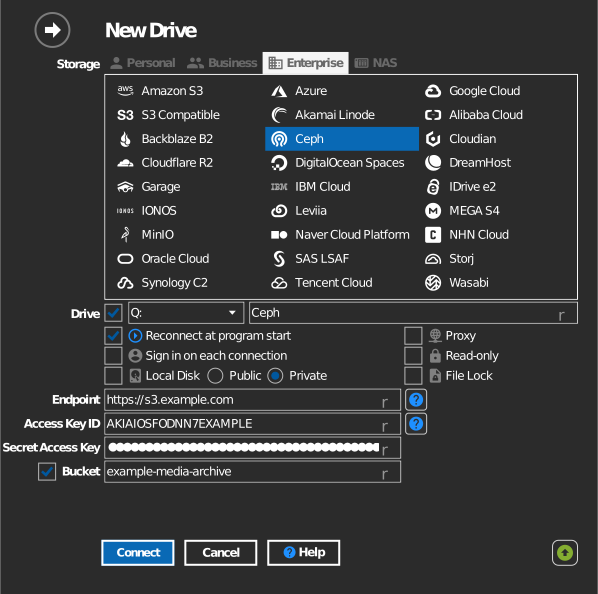
Manual bucket entry
If your key is not allowed to list buckets, tick the checkbox to the left of the bucket field and type the bucket name directly.
Settings
| Setting | Description | Default |
|---|---|---|
| Endpoint | RADOS Gateway URL | — |
| Access Key ID / Secret Access Key | RGW user credentials | — |
| Bucket | The bucket to mount (list or manual entry) | — |
| Read-only | Blocks writes to the mounted drive | off |
Behavior & limits
- Connections use path-style addressing, and private or self-signed TLS certificates are accepted — suitable for on-premises clusters.
- RaiDrive validates the endpoint's server signature; a URL that clearly identifies as another product is rejected as "invalid endpoint".
Troubleshooting
| Symptom | Cause | Fix |
|---|---|---|
| "invalid endpoint" | URL points at a non-RGW server or proxy | Point directly at the RGW HTTP(S) port |
| Connection refused | RGW port blocked | Check firewall rules between your PC and the cluster |