Advanced Options
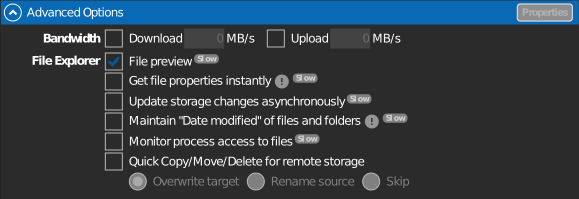
Advanced per-drive options for the drive.
Note
These options become available after the drive has been added, and the drive must be disconnected while you change them.
Capacity
Sets the size that the drive reports to Windows. File Explorer shows this value as the drive's total capacity.
Bandwidth
Limits the maximum download and upload speed for this drive, each with its own checkbox and limit. A speed-limit badge appears on the drive while a limit is active.
File preview
File Explorer thumbnail previews for files on the drive. On by default; turn it off to avoid the extra downloads previews cause — files then show an overlay mark instead of a thumbnail.
Get file properties instantly
Fetches file properties (size, dates) from the storage immediately instead of on demand — folder views show complete details right away at the cost of extra requests.
Update storage changes asynchronously
Changes made outside RaiDrive (web browser, another PC) are picked up at a set refresh interval instead of on every folder view — faster browsing on large storages. For Enterprise and NAS storages you can set the interval yourself.
Maintain "Date modified" of files and folders
Keeps the original modified dates of files and folders — for example, a copied file keeps the source file's date instead of the copy time.
Supported across the storage services RaiDrive connects to. On WebDAV it additionally depends on the server honoring date updates — Synology, QNAP, TerraMaster, Zyxel, and Nextcloud do; ipTIME and ASUSTOR do not.
Monitor process access to files
Records which Windows processes are reading or writing files on the drive. View the live list in the Account panel's Process Monitor. Clicking a file there opens its folder in File Explorer.
Use it to see which files an AI tool reads and writes. See Let AI tools read cloud files without changing them.
Any paid plan
Included in every paid plan (Starter and above) — not on the free Standard plan. See raidrive.com/pricing.
Quick Copy/Move/Delete for remote storage
Copy, move, and delete are processed at high speed on the remote storage instead of streaming through your PC.
Nothing special triggers it — copy, move, or delete files on the drive the way you normally would in File Explorer (drag and drop, Ctrl+C/V, Delete, or the right-click menu). RaiDrive detects the operation automatically and takes over, showing its own progress dialog in place of File Explorer's.
Without this option, copying or moving a file means File Explorer downloads it to your PC and re-uploads it, even when the source and destination are on the same drive. With it on, RaiDrive tells the storage service to copy or move the file directly on its own servers — your PC only sends the instruction, not the file data. The larger the file, or the more files, the bigger the difference.
When a name conflict occurs, the selected policy applies:
| Policy | On a name conflict… |
|---|---|
| Overwrite target | the existing file is replaced |
| Rename source | the incoming file is renamed |
| Skip | the file is not transferred |
Any paid plan
Included in every paid plan (Starter and above) — not on the free Standard plan. See raidrive.com/pricing.