Naver MYBOX
Connection temporarily suspended
As of July 14, 2026, connecting to Naver MYBOX is unavailable: Naver discontinued the legacy API and has not yet released a new API to external developers. See the official notice.
Mount Naver MYBOX as a Windows drive with your Naver account. Connecting is unavailable until Naver releases a new API to external developers.
Before you begin
Prepare the following in advance:
- A Naver account.
Help from Naver
Connect
- Click Add in the toolbar.
- Choose Personal → Naver MYBOX.
- Set the drive letter and name, then click Connect.
- Your browser opens — sign in with your Naver ID, check Agree to all terms, and click OK to let RaiDrive access your account.
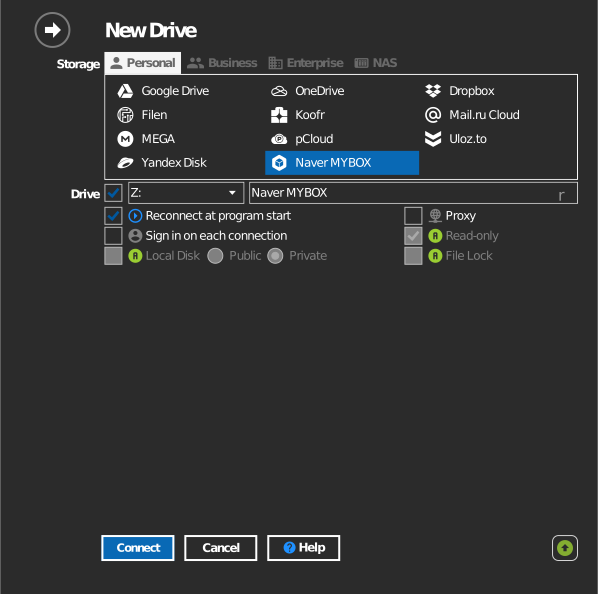
Settings
| Setting | Description | Default |
|---|---|---|
| Drive letter | Where the drive mounts in Windows | first available |
| Name | Label shown in File Explorer | Naver MYBOX |
| Read-only | Blocks writes to the mounted drive | off |
Behavior & limits
- Transfer speed follows your MYBOX plan and Naver's service limits.
- Naver periodically re-asks for consent; when that happens the drive prompts you to sign in again.
Troubleshooting
| Symptom | Cause | Fix |
|---|---|---|
| Sign-in page loops | Naver requires re-consent or 2-step verification | Complete verification in the browser, then connect again |
| Drive connects but shows no files | Signed in to a different Naver account | Open mybox.naver.com in the browser and confirm the account and files |