pCloud
Mount pCloud as a Windows drive. Sign in with your pCloud account, or with the Facebook, Google or Apple account linked to it.
Before you begin
Prepare the following in advance:
- A pCloud account. You can also sign in with the Facebook, Google, or Apple account linked to it.
Help from pCloud
Connect
- Click Add in the toolbar.
- Choose Personal → pCloud.
- Set the drive letter and name, then click Connect.
- Your browser opens — sign in to pCloud and allow access.
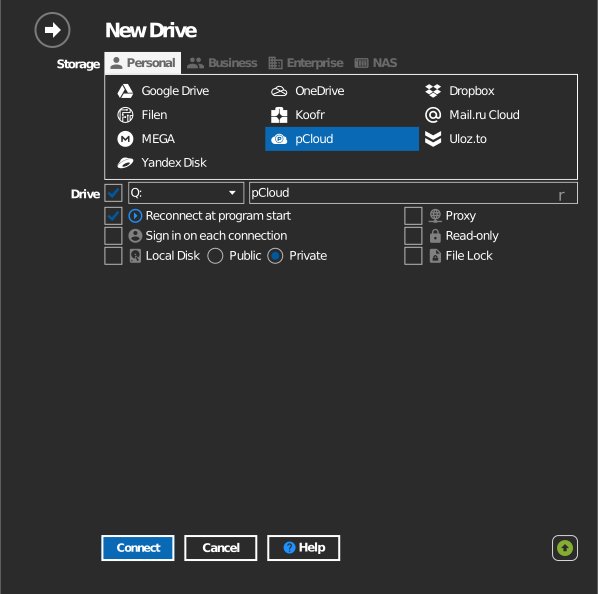
Settings
| Setting | Description | Default |
|---|---|---|
| Drive letter | Where the drive mounts in Windows | first available |
| Name | Label shown in File Explorer | pCloud |
| Read-only | Blocks writes to the mounted drive | off |
Behavior & limits
- pCloud accounts live in one of two data regions (US or EU); the account's region is handled automatically at sign-in.
- pCloud file names allow all characters except
/,\, and the NUL byte — see pCloud filename rules.
Troubleshooting
| Symptom | Cause | Fix |
|---|---|---|
| Sign-in succeeds but the drive is empty | Wrong pCloud account | Disconnect the drive, then connect again and sign in with the intended account |