Google Cloud
Mount a Google Cloud Storage bucket as a Windows drive. Sign in with your Google account in the browser — no access keys needed.
Before you begin
Prepare the following in advance:
- A Google account with access to the Google Cloud project — no access keys are needed; RaiDrive signs in with OAuth in your browser.
- On that project, a role that can list and read/write objects — for example Storage Object Admin (or Storage Object Viewer for read-only use), granted in IAM & Admin.
Help from Google
Connect
- Click Add in the toolbar.
- Choose Enterprise → Google Cloud.
- Click the Refresh button next to the project field. Your browser opens — sign in to Google and click Allow.
- Select the project, then the bucket, and click Connect.
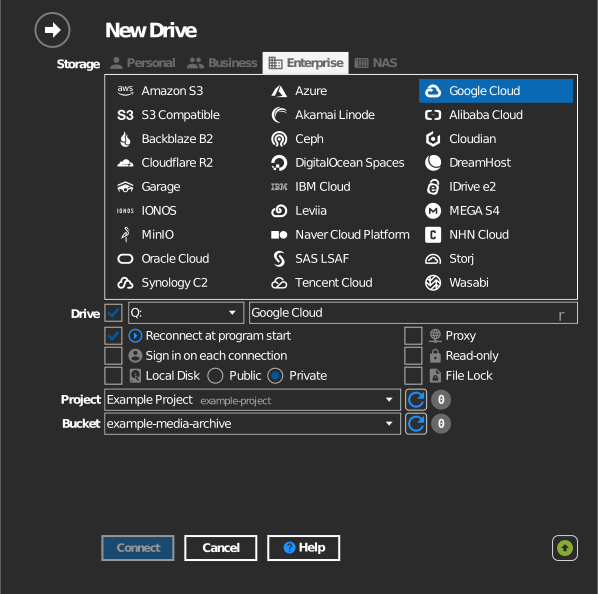
Settings
| Setting | Description | Default |
|---|---|---|
| Project | The Google Cloud project that owns the bucket | — |
| Bucket | The bucket to mount | — |
| Read-only | Blocks writes to the mounted drive | off |
Behavior & limits
- Storage classes with retrieval cost (Nearline, Coldline, Archive) can be opened, but reads incur the class's retrieval pricing — see Google Cloud: storage classes.
Troubleshooting
| Symptom | Cause | Fix |
|---|---|---|
| Project list is empty | Account has no role on any project | Ask the project owner for access, then Refresh again |
| Bucket list is empty | Role cannot list buckets in the project | Grant Storage Object Admin or similar on the project or bucket |
| Writes fail on a mounted bucket | Viewer-only role | Use a role with storage.objects.create permission |